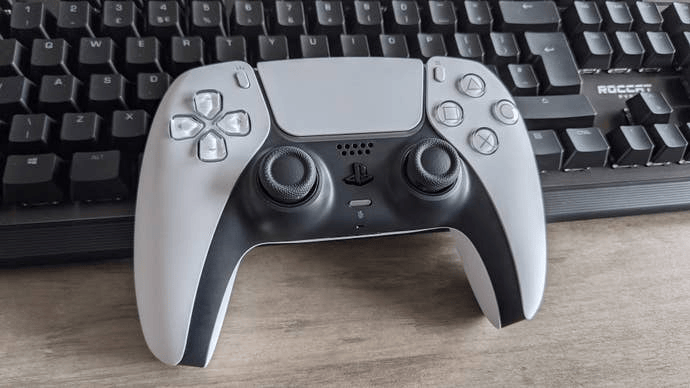
The easiest and most direct way to connect your PS5 controller to your PC is through a USB cable. Follow these steps:
Prepare the Cable: Use the USB-C to USB-A cable that came with your PS5 controller.
Plug into the PC: Insert the USB-C end of the cable into the controller and the USB-A end into an available USB port on your PC.
Automatic Detection: Once connected, Windows should automatically detect the controller and install the necessary drivers.
Test the Controller: To ensure everything is working, you can test the controller on Steam or any compatible game. Open the game and start playing to check the functionality of the buttons.
If you prefer to go wireless, you can easily connect your PS5 controller via Bluetooth. Here's how:
Enable Bluetooth on Your PC: First, make sure your PC has Bluetooth enabled. Go to your PC's settings and turn on Bluetooth if it’s not already activated.
Put the Controller in Pairing Mode: On the PS5 controller, hold the PS button and the Create button (next to the D-pad) at the same time until the light bar starts flashing blue. This indicates that the controller is in pairing mode.
Pair with Your PC: On your PC, go to Settings > Devices > Bluetooth & other devices. Click Add Bluetooth or other device, then select Bluetooth. Choose Wireless Controller from the list of available devices.
Complete the Pairing: Once paired, the light on the controller will stop blinking and remain solid, indicating a successful connection.
Once your PS5 controller is connected, you can use it with Steam for gaming. Steam has built-in support for the DualSense controller, and you can configure it easily:
Launch Steam: Open the Steam application on your PC.
Go to Big Picture Mode: Click the controller icon in the top-right corner to enter Big Picture Mode.
Navigate to Settings: Go to Settings > Controller Settings and enable PlayStation Configuration Support.
Customize the Controller: You can now customize the controller’s button layout and functionality in Steam’s Big Picture Mode, ensuring it works perfectly for your games.
If you’re having trouble connecting your PS5 controller to your PC, consider the following troubleshooting tips:
Update Drivers: Make sure your PC’s Bluetooth drivers are up to date to ensure compatibility with the PS5 controller.
Reboot the PC: Restart your PC to allow any driver or connection issues to resolve.
Reset the Controller: If the controller is not pairing, try resetting it by pressing the small reset button on the back of the controller using a pin or paperclip.
Connecting your PS5 controller to a PC is straightforward and can be done either via USB cable or Bluetooth. Whether you're gaming on Steam or playing other PC games, the DualSense controller provides an excellent experience with its advanced features, including haptic feedback and adaptive triggers. Now you’re ready to game on your PC with your PS5 controller!


Comments